
Planado supports adding custom fields for clients and sites. You can store information in them that doesn’t fit into the standard fields for clients and sites. For example, you can use custom fields to store documents related to a client or Site.
Available field types
Currently, the following types of custom fields are available for clients and Sites:
Yes/No;
Number;
Integer;
Money;
Text;
File;
Photo;
Pick list;
Link;
Date;
Time;
Date and time;
Adding custom fields
To add custom fields for clients or sites, go to the Settings → Addresses → Custom fields page.
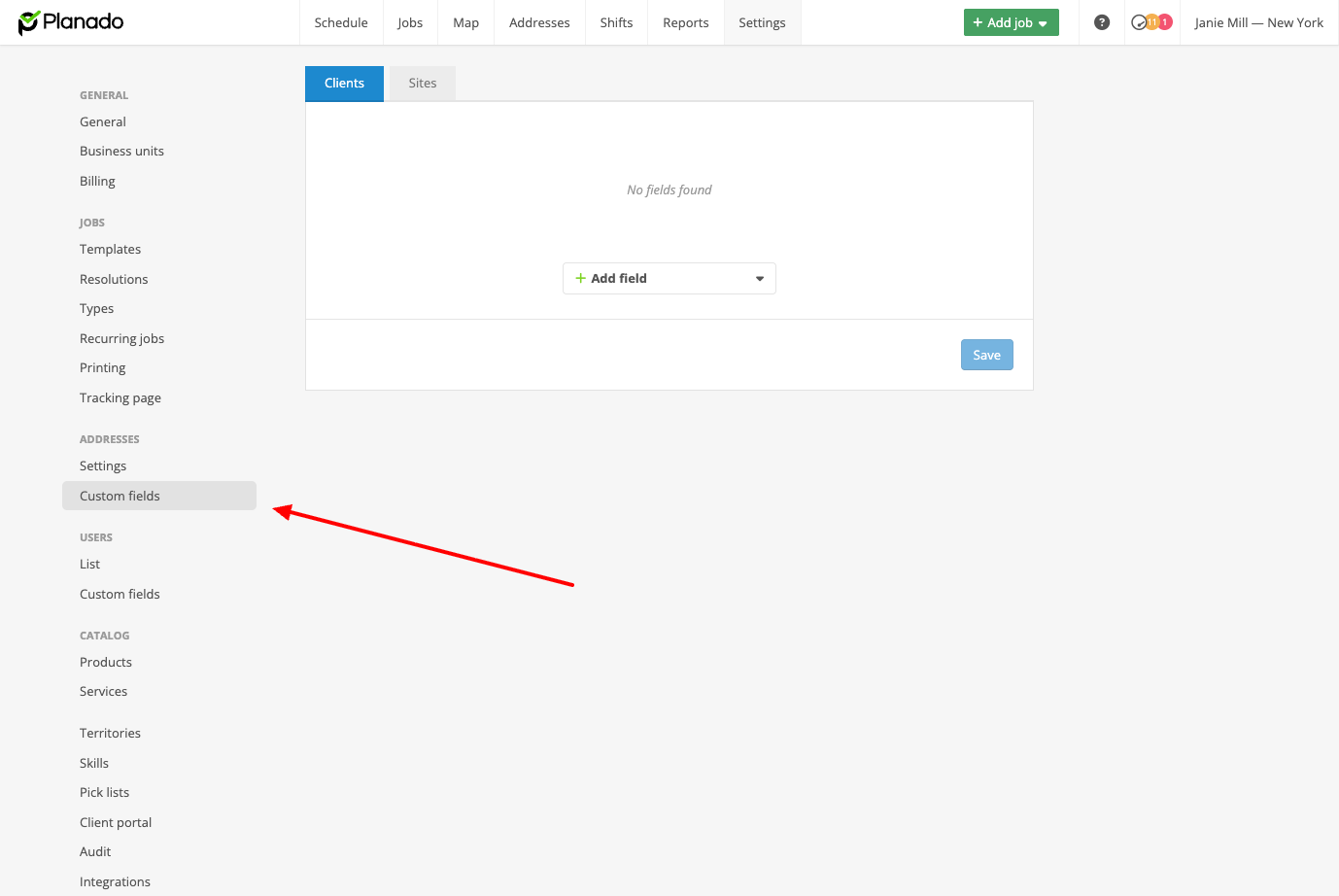
Settings → Addresses → Custom fields
At the top of the page, select the Clients or Sites tab, depending on where you want to add the fields.
Click Add field and choose the type of field you want to add.
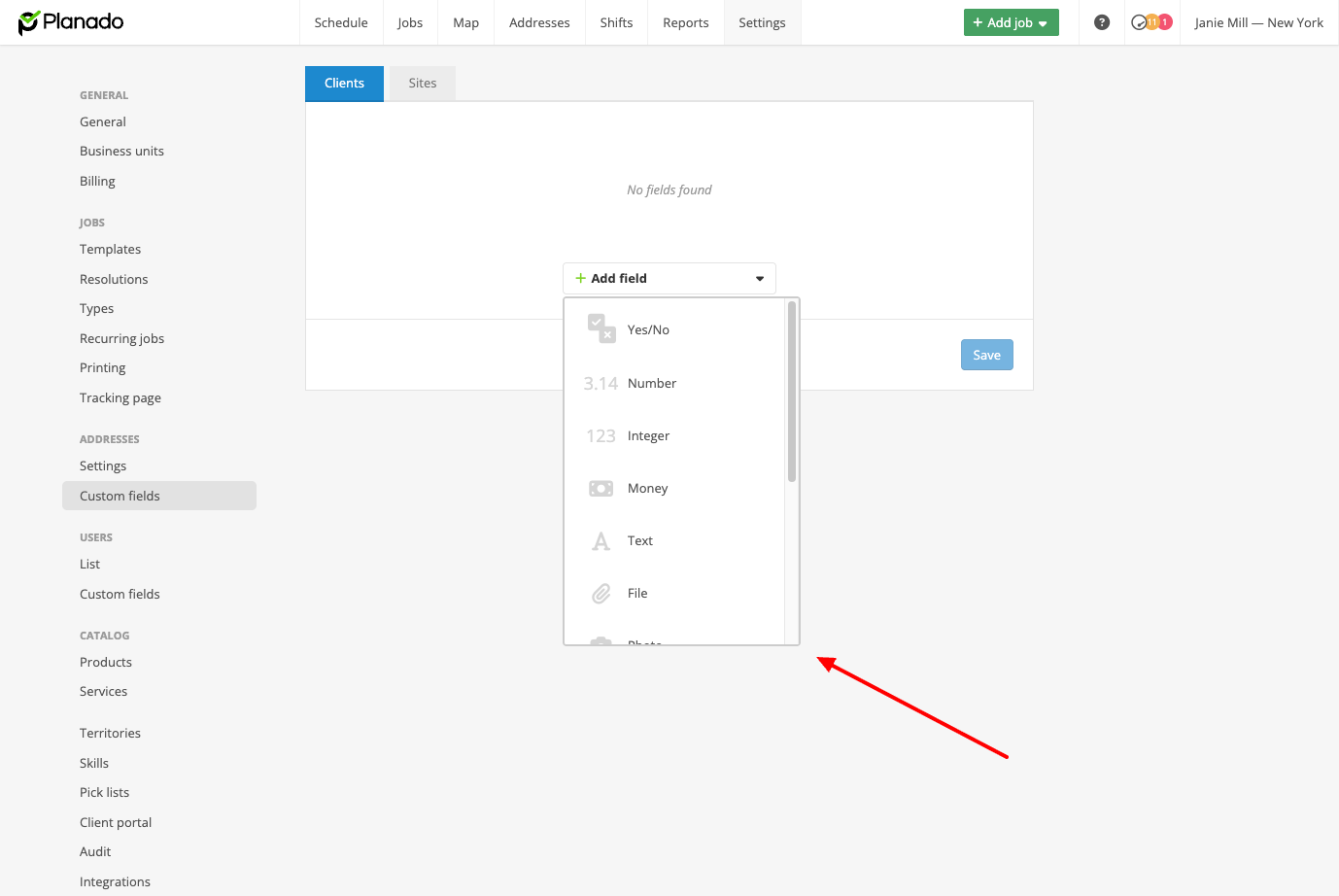
Adding a new custom field
After selecting the field type, it will appear in the list.
Enter the name of the new field.
For fields of the Pick list type, you will also need to specify the list of values.
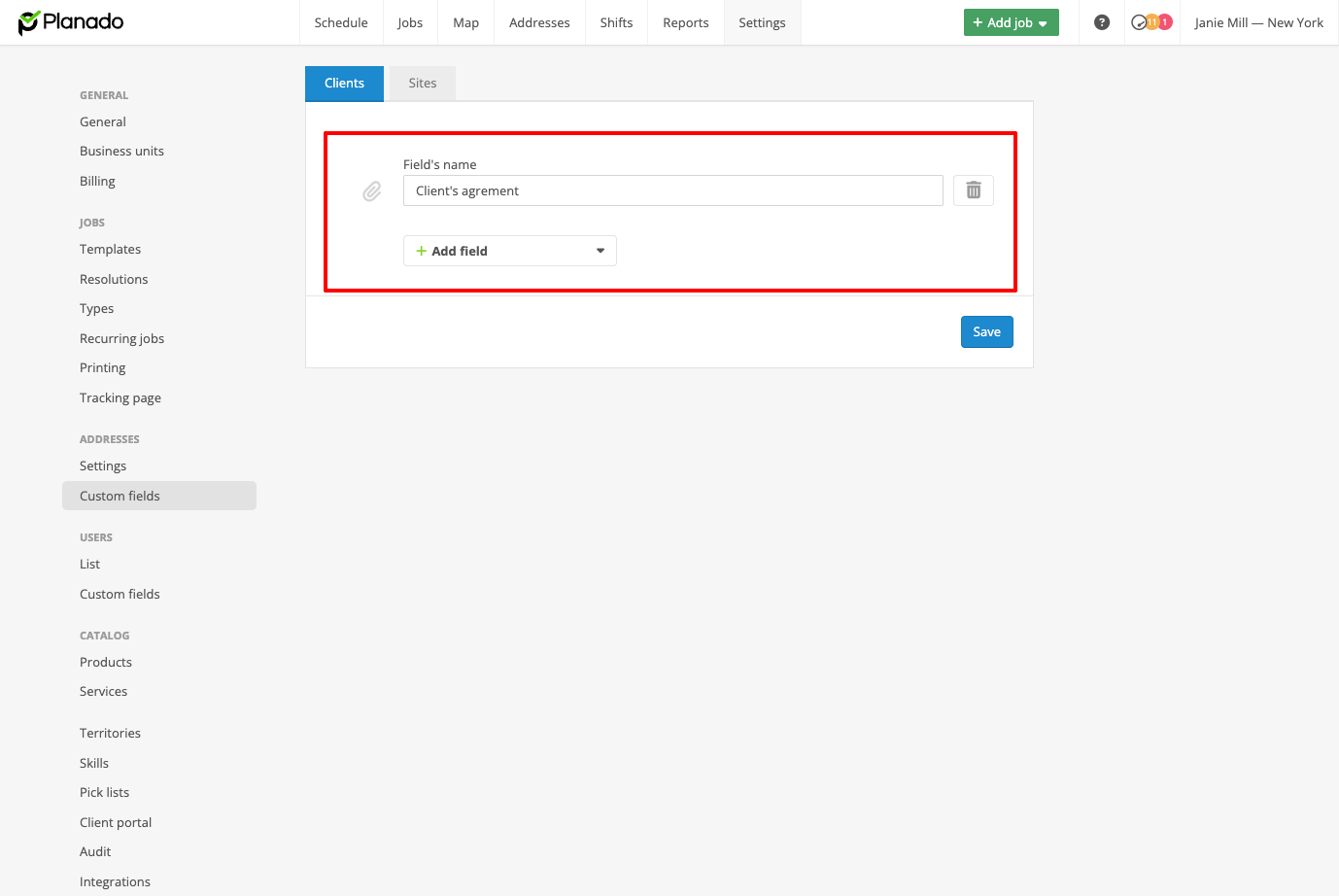
An added custom field
Add all the necessary fields for clients or sites in this way, and then click Save.
To delete a field you’ve added, click the delete icon next to it.
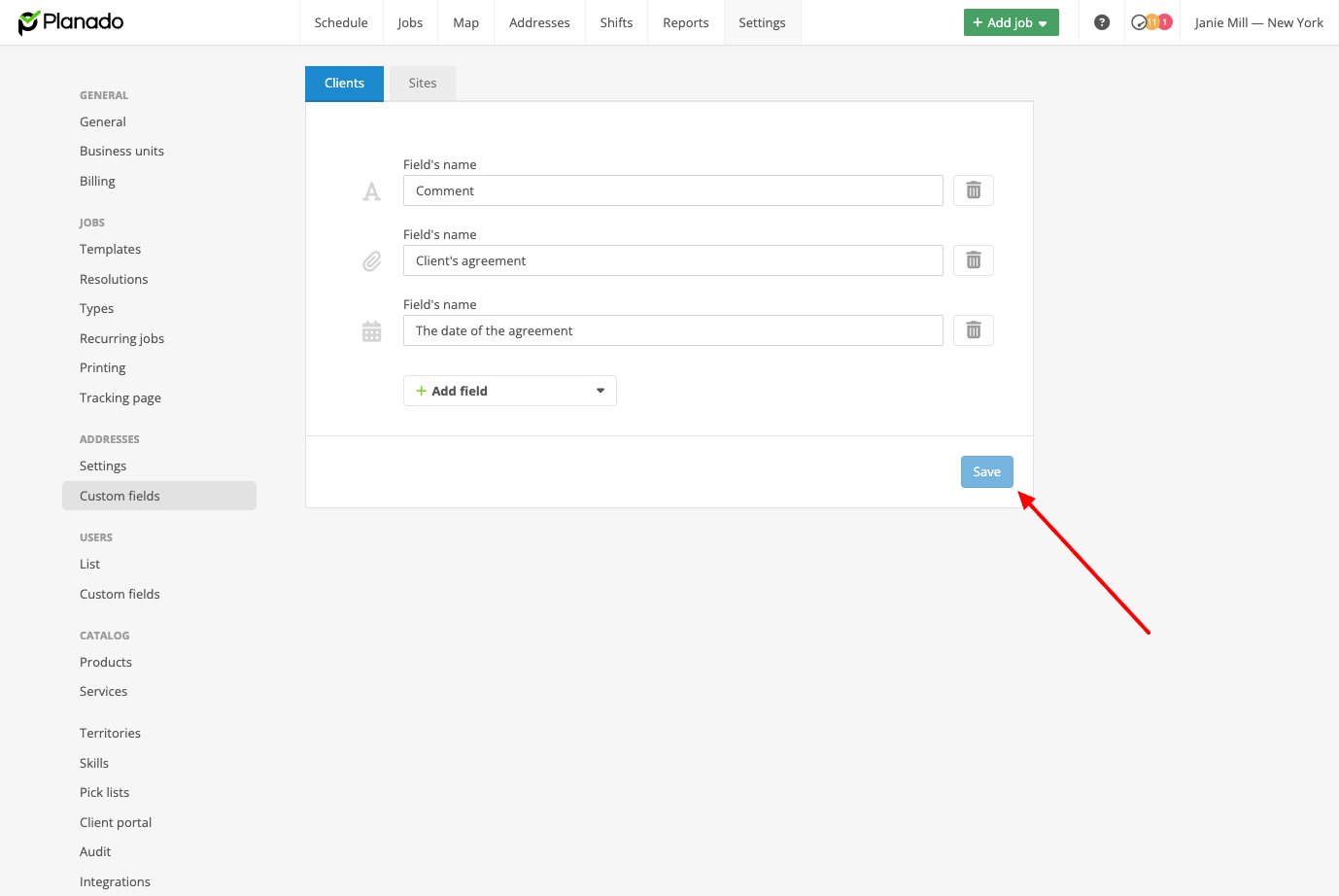
After saving, the fields will appear in your clients or sites.
Filling in and using custom fields for clients and Sites
Once you’ve added fields for clients or Sites, they will appear for those entities, and you can fill them in through the web app or by using an upload file.
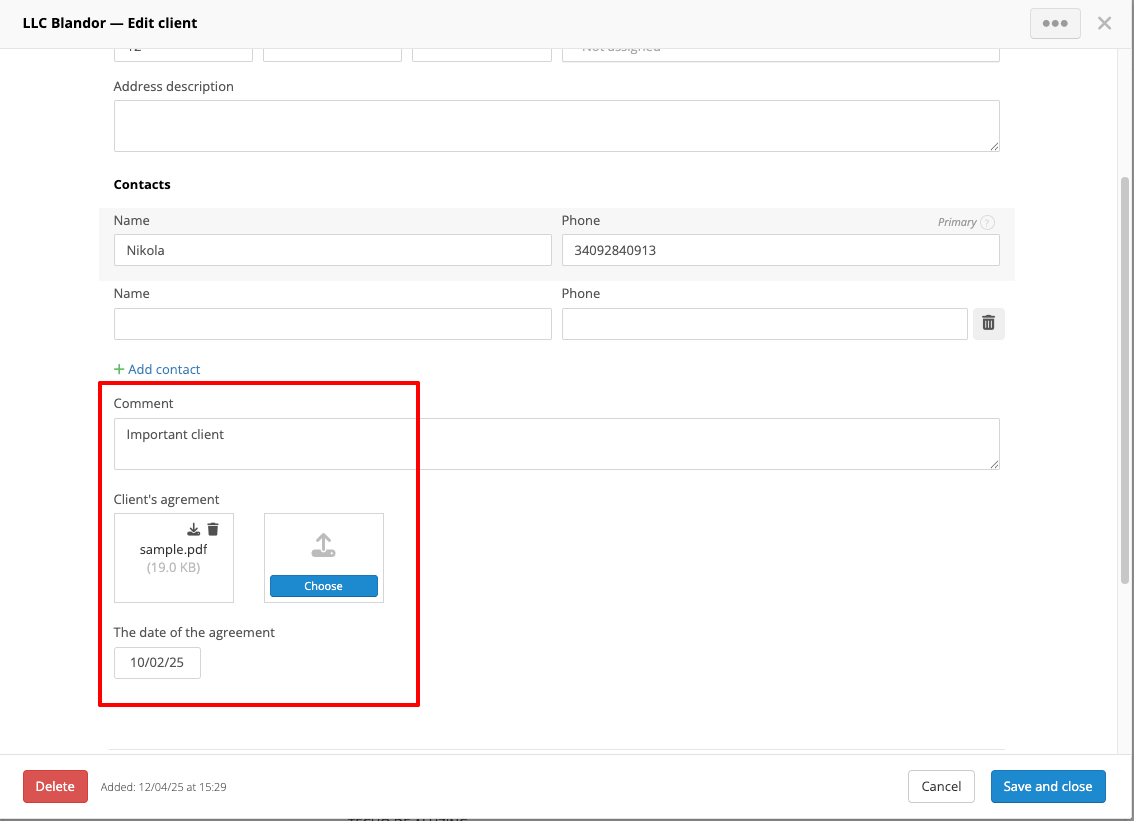
Client's custom fields
If a client or a site has custom fields filled in, and fields with the same type and name exist in a job template, then when you create a job based on that template for this client or site, the values from the client’s or site’s fields will automatically be filled into the job fields.
This allows you to automatically upload the necessary documents to a job, fill in dates, or populate text fields.
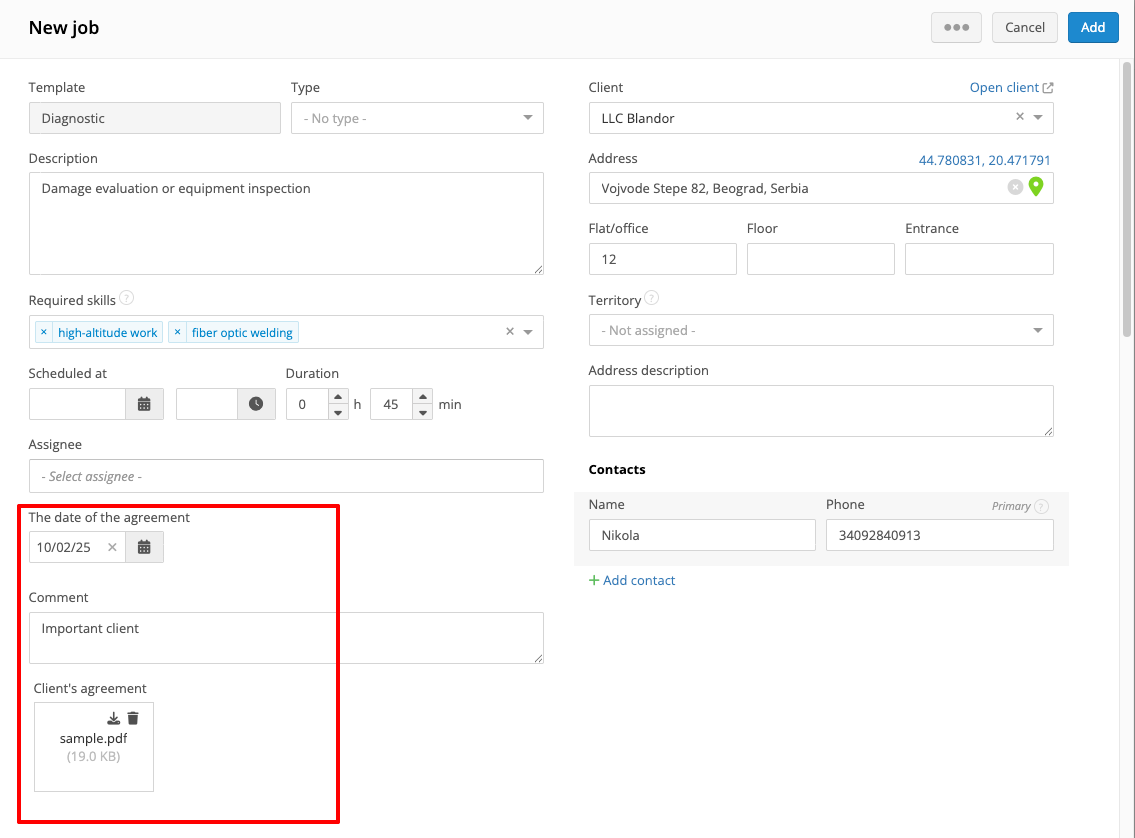
Automatically filled job fields
This way, you’ll immediately get all the needed information about the client in the job without having to fill it in manually.
If you have any questions about using custom fields for clients and Sites or other Planado features, contact us at support@planado.app or through the support portal.